Your Ergonomic Assessment Checklist: A How-To Guide
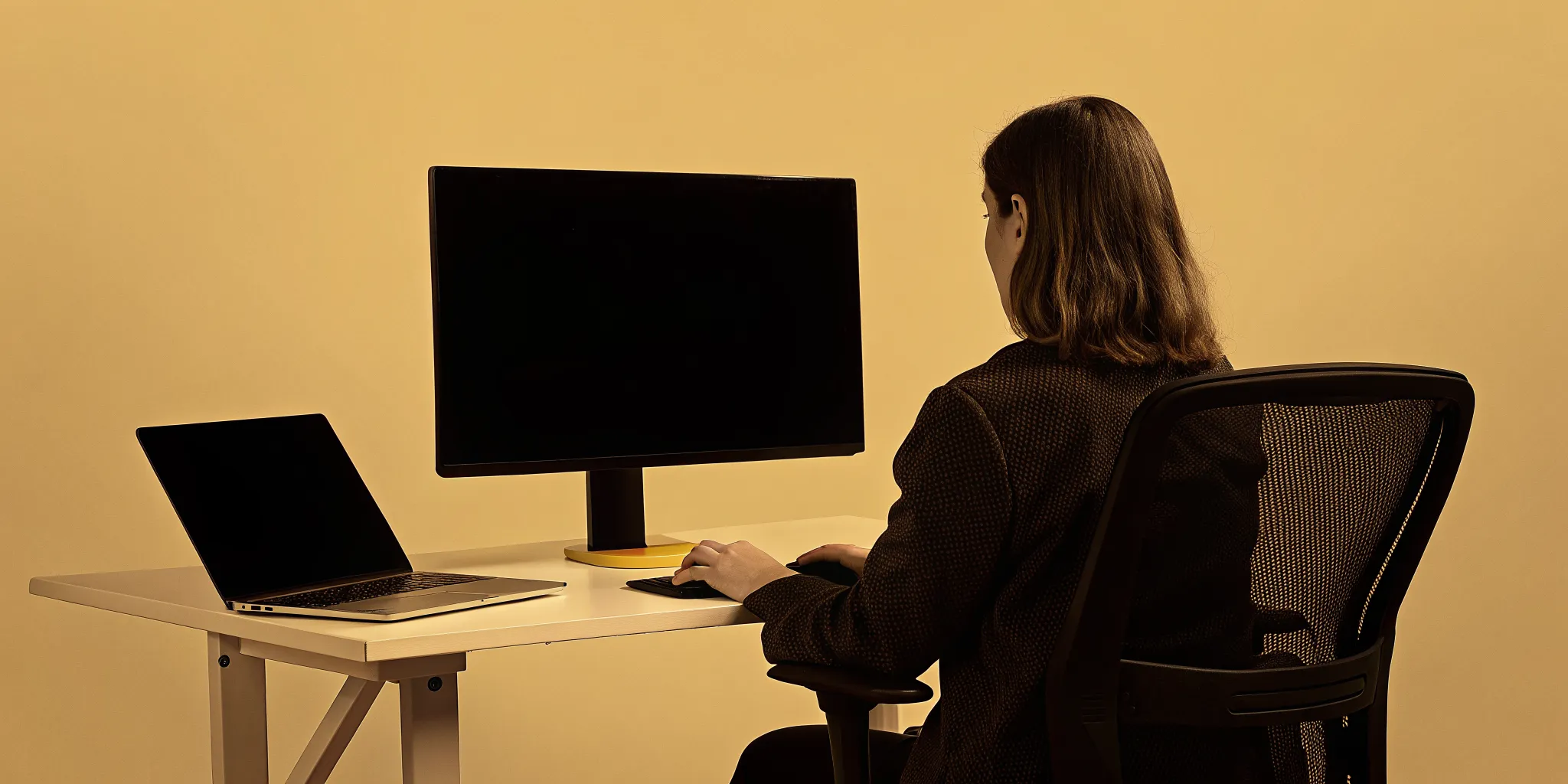
As creatives, we understand that good design is intuitive. It removes friction and makes an experience feel effortless. The same principle applies to your workspace. When your desk, chair, and monitor are perfectly aligned with your body, you don’t even notice them. You’re just free to focus and create. But a poorly designed setup is a constant source of distraction and discomfort. An ergonomic assessment checklist is essentially a user experience audit for your desk. It guides you through evaluating each component of your workspace, helping you apply design thinking to your own environment to create a setup that is truly seamless and supportive.
Key Takeaways
- Ergonomics directly impacts creative output: A comfortable setup is about more than just avoiding pain; it’s about eliminating the physical distractions that interrupt your focus. When your body is properly supported, you can dedicate more mental energy to producing your best work.
- Fix your setup with a simple self-assessment: You don't need an expert to start feeling better. Use a checklist to evaluate your workspace and make targeted adjustments to your chair, desk, monitor, and keyboard to support a neutral, relaxed posture.
- Good ergonomics is an ongoing habit: A perfect setup isn't static, so check in with your body and workspace regularly. Lasting comfort comes from building small, consistent habits like taking movement breaks and performing quick posture checks throughout your day.
What Is an Ergonomic Assessment Checklist?
Think of an ergonomic assessment checklist as a guided tour of your own workspace. It’s a simple, structured tool that helps you evaluate how your body interacts with your desk, chair, computer, and other equipment. Instead of just guessing what might be causing that nagging shoulder pain, a checklist walks you through specific checkpoints to identify potential physical stressors. It’s all about spotting the small misalignments in your setup, like your monitor height or chair position, before they turn into bigger problems. This systematic approach gives you a clear, actionable plan to create a workspace that truly supports you.
Why You Need One
It’s nearly impossible to do great creative work when you’re constantly distracted by physical discomfort. A workspace that isn’t set up correctly can lead to a whole host of issues, from headaches and back pain to more serious repetitive strain injuries. These problems don’t just hurt, they drain your focus and kill your productivity. Using a checklist is a proactive step toward protecting your health and your creative energy. The ultimate goal is to build a workspace that is not only safer but also helps you stay productive and in the zone. By removing physical friction, you free up more mental space for what really matters: your ideas.
Who Should Use This Checklist
This checklist is for anyone who works at a desk, not just those already experiencing pain. Think of it as preventative care for your work life. It’s a fantastic tool if you’re setting up a new office, transitioning to a hybrid schedule, or simply want to optimize your current space for better long-term health. While it’s especially helpful for anyone dealing with existing muscle or joint pain, you don’t need to wait for a problem to arise. Whether you’re a designer, a writer, or a project manager, taking a few minutes to assess your setup can help you make small adjustments that add up to a huge difference in how you feel at the end of the day.
Why Ergonomic Assessments Matter
Before we get into the how-to, let’s talk about the why. An ergonomic assessment is more than just a checklist for buying a new chair. It’s a strategic look at how your workspace supports your body, your focus, and your creative work. When your environment is designed around you, it removes physical distractions and friction, freeing you up to do your best thinking. Ignoring ergonomics, on the other hand, means you’re likely forcing your body to adapt to a setup that works against it. Over time, that mismatch can have serious consequences for your health and your business.
The Health Risks of a Poor Setup
That nagging ache in your lower back or the tingling in your wrists at the end of the day isn't just a minor annoyance. It’s your body sending a clear signal that something is wrong with your setup. A poorly designed workspace can lead to painful and persistent musculoskeletal disorders, or MSDs. These are injuries that affect your muscles, nerves, and tendons. Conditions like chronic back pain or carpal tunnel syndrome can develop gradually from repetitive strain and awkward postures. These issues don’t just cause discomfort; they can lead to missed work, costly medical bills, and a significant drop in your quality of life.
The Link Between Comfort and Productivity
When you’re not constantly shifting in your seat to relieve back pain or stretching your wrists, you have more mental energy to dedicate to your work. A comfortable and supportive workspace is directly linked to better focus and higher productivity. Think about it: physical discomfort is a constant, low-level distraction that pulls you out of your creative flow. By creating an ergonomic setup, you eliminate that distraction. This allows your team to stay engaged in their tasks for longer periods, leading to better ideas and more efficient work. A healthy, happy team is a productive one, and it all starts with a workspace that supports their well-being.
The Business Case for Better Ergonomics
Investing in ergonomics is one of the smartest financial decisions you can make for your agency. It’s a practical way to improve workplace health while reducing costs tied to employee discomfort and sick days. When your team is healthy and comfortable, you’ll see a noticeable reduction in absenteeism. Good ergonomics also plays a huge role in employee retention. Providing a safe and supportive environment shows your team that you value them, which builds loyalty and morale. The return on investment is clear: you spend less on costs related to injury and turnover, all while creating a more positive and productive work culture.
What to Include on Your Checklist
A great ergonomic checklist breaks your workspace down into key zones. Think of it as a blueprint for a more comfortable and productive setup. Instead of trying to fix everything at once, you can focus on one area at a time, making small adjustments that add up to a big difference. This isn't just about avoiding aches and pains; it's about designing a space that supports your best work. By systematically reviewing your desk, gear, and habits, you can identify specific issues and find practical solutions.
Your checklist should cover the physical components of your workspace, like your chair and monitor, as well as how you interact with them throughout the day. We’ll walk through the essential categories to include.
Your Desk and Chair Setup
Your desk and chair are the foundation of your workspace, so let's start there. Your chair should actively support you. When you’re seated, the backrest should make full contact with your back, and you should be able to fit two or three fingers between the back of your knees and the edge of the chair seat. This prevents the seat from cutting off circulation. Your desk height is just as important. Sit with your arms bent at a 90 to 100-degree angle; your desk should be at or just below your elbow height. This simple adjustment helps keep your shoulders relaxed and your wrists in a neutral position.
Your Keyboard, Mouse, and Monitor
Next, let’s look at the tools you interact with all day. Your keyboard and mouse should rest on a steady, flat surface that’s large enough for you to work comfortably. As with your desk, your hands should be over the keyboard with your elbows bent at about 90 degrees. Now, look at your monitor. The top of the screen should be at or slightly below your eye level when you’re looking straight ahead. This simple positioning trick prevents you from craning your neck up or hunching down, which is a common cause of shoulder and neck pain. An adjustable monitor arm can be a great investment if your screen doesn't have built-in height adjustment.
How You Sit and Move
Ergonomics isn't just about your equipment; it’s also about your habits. Pay attention to your posture. Try to keep your head straight over your shoulders instead of leaning forward toward the screen. Your shoulders should be relaxed and down, not tensed up by your ears. Even with a perfect setup, staying in one position for too long causes strain. The best thing you can do is to build movement into your day. Make it a point to take short breaks every hour or so. Stand up, stretch, or simply switch to a different task for a few minutes to give your body a rest from repetitive motions.
Lighting and Your Surroundings
Your environment plays a huge role in your comfort and focus. Glare is a major source of eye strain, so position your monitors where light from windows or overhead lamps doesn't shine directly on the screen. If you can’t move your desk, consider an anti-glare screen filter. It’s also helpful to adjust lighting levels for different activities. You might want brighter, focused light for reviewing paperwork but softer, ambient light for general computer work. A desk lamp with adjustable brightness gives you the flexibility to create the right conditions for any task.
How to Track Your Findings
An assessment is only useful if you act on it. As you go through your checklist, jot down notes on what’s working and what isn’t. Once you’ve identified a few problem areas, prioritize them and make a plan. You don’t have to buy all new equipment overnight. Start with simple adjustments, like raising your monitor on a stack of books or putting a pillow behind your back for better support. The goal is to turn good ergonomics into a habit. Set a recurring reminder to check your posture and workspace setup every few months to ensure it’s still working for you.
How to Conduct Your Own Ergonomic Assessment
Running your own ergonomic assessment might sound technical, but it’s really just a thoughtful review of how you interact with your workspace. Think of it as a check-up for your desk. By taking a few minutes to evaluate your setup, you can spot potential issues before they turn into nagging pains or distractions. This process is all about making small, intentional adjustments that add up to a more comfortable and productive workday. You don’t need to be an expert to get started. All you need is a clear plan and a willingness to observe how your body feels throughout the day. Let’s walk through how you can do it yourself, step by step.
Getting Ready: What to Do First
Before you start moving things around, it helps to understand what you’re looking for. An ergonomic assessment is a systematic look at your workstation, your body’s movements, and the equipment you use every day. The goal is to identify any risk factors that could lead to discomfort or injury. By understanding this foundation, you can approach your self-assessment with a clear purpose. It’s not just about buying a new chair; it’s about creating a setup where your body can work in a natural, relaxed state. This initial step sets the stage for making meaningful changes that will support your long-term well-being.
A Step-by-Step Walkthrough
Once you’re ready, you can begin your review. The best way to do this is with a structured approach so you don’t miss anything.
- Evaluate your workstation. Start by looking at the big picture. Use an ergonomic assessment checklist to guide you through each component of your workspace, from your chair to your monitor. This will help you systematically identify potential risks.
- Adjust for neutral posture. The ultimate goal is to arrange your desk so your body can maintain a ‘neutral posture.’ This means your joints are naturally aligned and your muscles are relaxed. For example, your desk should be at a height that allows your elbows to bend at a 90 to 100-degree angle. Your feet should be flat on the floor, and your screen should be at eye level.
What to Do With Your Results
After you’ve completed your checklist, it’s time to analyze your findings. The results will give you a clear roadmap for what needs to change. Look for patterns and prioritize the most significant issues first. For instance, if you noted neck strain and realized your monitor is too low, that’s an easy and immediate fix. The insights you gain are invaluable for making targeted improvements to your workstation. Think of this as a long-term strategy for managing your body mechanics and preventing issues before they start. Your assessment isn’t a one-time fix; it’s the first step toward creating a healthier work environment.
Common Ergonomic Problems and How to Fix Them
Once you’ve assessed your workspace, you’ll probably spot a few areas for improvement. Most ergonomic issues are surprisingly common and often have simple fixes that make a huge difference in your daily comfort. You don’t need to buy all new equipment to feel better. Instead, focus on making small, strategic adjustments to your monitor, chair, keyboard, and lighting. These tweaks can relieve persistent aches and help you focus on what you do best: creating amazing work.
Solving Monitor and Eye Strain Issues
Staring at a screen all day is tough on your eyes and neck. If your monitor is positioned incorrectly, you might find yourself hunching over or squinting, which leads to headaches and muscle strain. The fix is all about angles and distance. First, make sure the top of your screen is at or just below your eye level. This simple adjustment helps you maintain a neutral neck position. Next, your monitor should be about an arm’s length away, a distance that allows you to read text clearly without leaning forward. This setup is a key part of any ergonomic evaluation and can significantly reduce eye fatigue and neck pain over time.
Adjusting Your Chair and Desk Height
Your chair and desk are the foundation of your workspace, and their heights work together to support a healthy posture. Start with your desk. It should be positioned at or slightly below your elbow height when your arms are bent at a 90-degree angle. This allows your shoulders to relax. Next, adjust your chair so your hips and knees are also bent at roughly 90 to 100 degrees, with your feet flat on the floor. This alignment is crucial for reducing lower back strain and promoting good circulation. You can find more great office ergonomics tips to fine-tune your setup and ensure your body is properly supported throughout the workday.
Correcting Keyboard and Mouse Placement
Do you ever feel a twinge in your wrist, elbow, or shoulder after a long day of clicking and typing? Your keyboard and mouse placement are likely the culprits. The goal is to keep your wrists in a straight, neutral position. To do this, your keyboard and mouse should be flat and on the same surface. Avoid propping your keyboard up on its little feet, as this can force your wrists to bend upward. You should also keep your mouse right next to your keyboard so you don’t have to constantly reach for it. This simple change minimizes shoulder and arm strain, preventing the repetitive stress that can lead to more serious issues down the road.
Improving Your Workspace Lighting
Good lighting is about more than just seeing your screen; it’s about reducing glare and preventing eye strain. Harsh overhead lights or bright sunlight from a window can create reflections on your monitor, forcing your eyes to work harder. An easy fix is to position your screen so that light sources are to the side, not directly in front of or behind it. If you can’t move your desk, consider using blinds or an anti-glare screen filter. It’s also helpful to have adjustable lighting. You can use a desk lamp for paperwork and rely on softer, ambient light for computer work, creating a more comfortable visual environment.
How to Maintain an Ergonomic Workspace
An ergonomic assessment isn't a one-and-done task. Your body, your projects, and your gear change over time, so your workspace needs to adapt, too. Maintaining an ergonomic setup is about building small, consistent habits that keep you comfortable and focused. Think of it as ongoing maintenance for your most important professional tool: yourself. By checking in regularly, you can catch bad habits before they turn into bigger problems and ensure your workspace continues to support your best work.
Build Movement Into Your Day
Even the most perfectly arranged desk can’t protect you from the strain of sitting still for hours. Your body is designed to move, so the best thing you can do is integrate activity into your workday. This doesn’t mean you need to run a marathon on your lunch break. Instead, focus on small, frequent movements. Stand up to take a phone call, walk to the kitchen for water, or simply stretch at your desk. It’s also helpful to give your body a rest by switching between different tasks. To combat screen fatigue, try the 20-20-20 rule: every 20 minutes, look at something 20 feet away for 20 seconds to let your eyes relax.
Know When to Adjust or Upgrade Your Gear
Listen to your body. If you feel persistent neck pain, wrist soreness, or lower back aches, it’s a clear sign that something in your setup isn’t working. Start with small adjustments. Ensuring your desk is at the correct height is crucial, allowing your arms to rest at a 90-degree angle. Check that your chair’s backrest is positioned to support your lower back and promote a natural curve in your spine. If these tweaks don’t help, it might be time to consider upgrading your equipment. An investment in a quality chair or an adjustable monitor stand can make a huge difference in your daily comfort and long-term health.
Make Good Ergonomics a Habit
Turning good ergonomics into a habit is the key to lasting comfort. It starts with awareness. Set a recurring reminder to check your posture throughout the day. Are your shoulders relaxed and down, or are they creeping up toward your ears? Are your feet flat on the floor? These small check-ins help retrain your body. You can also remind workers about good posture and safe work habits to create a team-wide culture of wellness. Over time, sitting correctly and moving regularly will become second nature, allowing you to focus your energy on creative work instead of distracting discomfort.
Related Articles
- What Is Ergonomic Product Design? A Full Guide — Jackson Hedden
- A Practical Guide to Human Factors Engineering
Frequently Asked Questions
How often should I check my workspace ergonomics? Think of it as a regular check-up. A good rule of thumb is to review your setup every six months or so. You should also do a quick assessment anytime something changes, for example, if you get a new chair, start a project that requires more typing, or switch between a home and office workspace. The goal is to stay mindful of your posture and comfort, making small adjustments as needed before any discomfort settles in.
Do I need to buy a whole new setup to be more ergonomic? Not at all. While high-quality equipment can be a great investment, many of the most effective ergonomic fixes are completely free. You can make a huge difference just by adjusting what you already have. Simple changes, like placing a stack of books under your monitor to raise it to eye level or using a small pillow for lower back support, can solve common problems without costing you anything. Start with adjustments first, then decide if you need to upgrade.
I don't have any pain right now. Is an ergonomic assessment still necessary? Yes, absolutely. Think of ergonomics as preventative care for your body and your career. The aches and pains from a poor setup often develop slowly over time, and by the time you notice them, the strain has already taken a toll. An assessment helps you spot and fix potential issues now, ensuring your workspace supports your long-term health and keeps you focused and productive for years to come.
What's the most common mistake people make with their desk setup? One of the biggest and most common issues is incorrect monitor height. Many people work on laptops or with monitors that are positioned too low, forcing them to crane their neck downward for hours. This posture is a direct cause of neck, shoulder, and upper back pain. The fix is simple: make sure the top of your screen is at or just slightly below your eye level. This single adjustment can make an immediate difference in how you feel.
Besides my equipment, what else affects my workspace comfort? Your habits and environment are just as important as your gear. Even with a perfect chair, sitting still for too long will cause strain. Building movement into your day, like standing up to stretch every hour, is critical. Your lighting also plays a major role. Poor lighting or screen glare can cause significant eye strain and headaches, so make sure your space is well-lit and your screen is positioned to avoid reflections.